
To watch IPTV on Firestick, you need a connected Fire TV device, a player that supports its operating system, and valid access details from your content provider. Install the compatible app, add the playlist or login details it accepts, then test one stream before changing settings or adding more devices. Start with the exact model: a guide written for an Android-based Fire OS stick does not automatically apply to a Vega OS model.
Your setup in five checks
- Identify the Fire TV model and operating system.
- Connect it to the TV, power and internet.
- Install a player supported on that device.
- Add the provider’s access details in the matching format.
- Test live playback, then check the guide and other included content.
This guide covers initial setup and the first playback checks. Menu names can vary with software version and region. It is based on the official documentation linked below; the illustrations are not device screenshots or evidence of hands-on testing.
1. Check your Fire TV model before choosing an app
Open the device’s settings and look under My Fire TV or Device & Software, then About. Note the model and software version. If the name is unclear, check the original order or packaging. “Firestick 4K” alone is not precise enough: the generation matters.
These examples illustrate why. Amazon’s official device identification table lists the following systems:
| Fire TV Stick model | System listed by Amazon |
|---|---|
| 4K Max, 2nd generation (2023) | Fire OS 8 |
| 4K, 2nd generation (2023) | Fire OS 8 |
| 4K Plus (2025) | Fire OS 8 |
| 4K Select (2025) | Vega OS 1.1 |
| HD (2026) | Vega OS 1.1 |
| 4K, 3rd generation (2026) | Vega OS 2.0 |
Fire OS: check that the player supports your model and software. An Android download is not a guarantee of compatibility with every Fire TV.
Vega OS: use an app version offered for your device. Amazon documents separate packages for Android and Vega OS; an Android APK is not a Vega installation file. An older APK tutorial is therefore the wrong starting point for these models.
Buying a device specifically for an app? Check the app’s supported models first. Confirming compatibility before buying is more useful than choosing a stick solely by its “4K” label.
2. Prepare the device, connection and access details
Keep these items ready before opening a player:
- A television with an available HDMI input. It does not need its own IPTV app; the streaming stick runs the app.
- The Fire TV Stick, remote and appropriate power accessories. Follow the instructions supplied with your exact model.
- An Amazon account and a working internet connection. Have your Wi-Fi details available.
- A compatible player. Check its supported login formats and any separate licence conditions.
- Valid provider access. For example, an M3U playlist URL or a server address, username and password for an app that supports Xtream Codes login.
Amazon’s Fire TV Stick setup instructions explain connecting the stick to HDMI, selecting the corresponding TV input, joining Wi-Fi and registering the device. For models using the supplied USB power adapter, connect that adapter to a wall socket as instructed. Use the power arrangement specified for your model rather than assuming every television USB port is suitable.
A fast broadband package does not by itself confirm that the connection at the television is stable. Check playback in another working streaming app on the same stick. If that also struggles, investigate the connection before repeatedly changing IPTV credentials. Fibre can help, but it is not a universal requirement; the stream’s bitrate and the connection reaching the device matter.
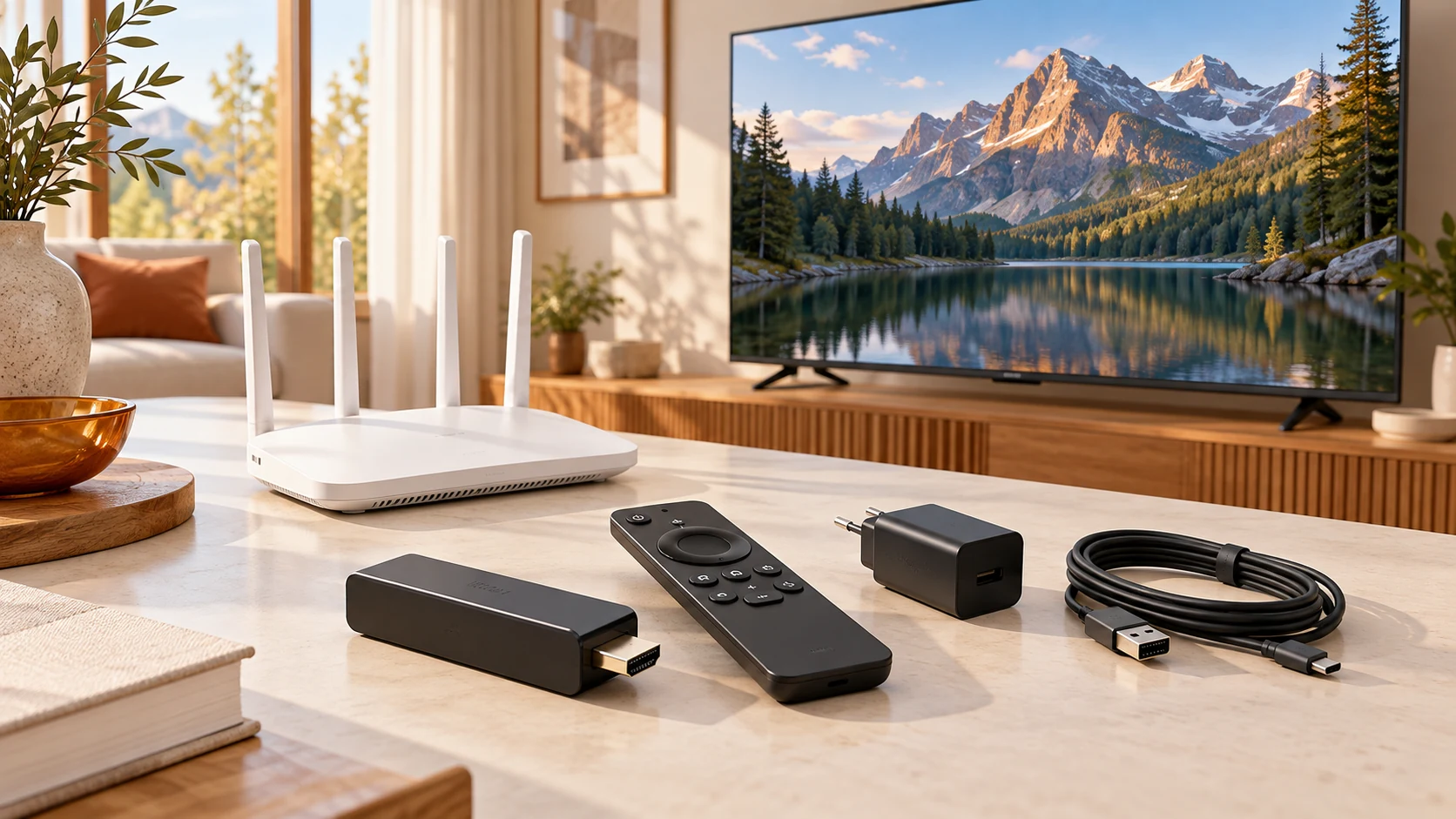
Three separate things: the Fire TV device runs software, the player opens supported streams, and the content provider supplies access. A paid player upgrade does not automatically include channels. Our FAQ on players and subscriptions explains the distinction.
3. Install a compatible IPTV player on Firestick
Start with the Amazon Appstore on your device
- From the Fire TV main menu, open Find and search for the exact app name. You can also use voice search.
- Open the app listing and check the publisher, description and any purchase information.
- Choose Get or the download/purchase control shown for that listing. Complete any account verification requested by Amazon.
- Open the installed app and check which playlist or login options it offers before entering credentials.
This follows Amazon’s official app download procedure. A similarly named app is not necessarily the same product. If your chosen player is missing, check its publisher’s supported platforms and the device’s Appstore availability before buying an app licence.
What about a player downloaded from its publisher?
Some publishers distribute an Android APK directly. For example, the official TiviMate website provides its APK download and a Downloader URL, and describes the app as intended for Android TV devices. It also makes clear that it supplies a player, not channels.
That is an example of a verifiable publisher source, not a promise that its APK works on every Fire TV. On a compatible Fire OS device, follow the publisher’s current installation guidance and the device’s supported installation controls. On Vega, look for a compatible version in the device’s store instead. Do not keep trying Android packages on a different operating system.
If an app is unavailable or installation is refused, ask the publisher about your exact model and software version. Avoid unofficial modified packages and random download codes: a familiar app name or short code does not establish who supplied the file.
How to choose between IPTV apps for Firestick
For this setup, choose by practical requirements: remote-control navigation, a supported login format, compatibility with your model, and clear licence terms. Check whether the features you need—such as a programme guide or catch-up—require a paid app upgrade and support from the content provider. Installing several players at once makes the first diagnosis harder; begin with one.
4. Add your provider’s playlist or login details
Open the app’s add-playlist or account screen. The labels below are generic: follow the matching option in your player rather than expecting identical buttons in every app.
| Access method | What you enter | What to check |
|---|---|---|
| M3U URL | The complete playlist URL supplied by the provider | Copy the full address, including any path and query parameters. |
| Xtream Codes login | Server URL, username and password in separate fields | Use the server address provided for this login method, including its port if supplied. |
| Portal or MAC-based activation | The portal and device/app identifier requested by a supported player | Confirm the exact identifier with the provider; do not substitute the Fire TV’s network MAC automatically. |
- Choose the matching format. A complete M3U link does not belong in a server-only field.
- Enter the details exactly. Check spaces, similar characters, the domain and any port. Keep the supplied
http://orhttps://scheme; do not remove the “s” as a general fix. Ask for a supported secure address if you are unsure. - Save and allow the import to finish. A large catalogue may take longer than a small list. Avoid starting several imports simultaneously.
- Confirm that categories and channels appear. Then test playback; a populated list alone does not prove the streams work.
If login fails, ask the provider to confirm the account status, URL and permitted connections. You can try the other format only when both the app and provider support it and the provider supplies the correct details. Changing from Xtream Codes to M3U does not renew an expired account or repair a server outage.
Keep full playlist URLs, passwords and device keys private. When requesting help, describe the error and share a redacted screenshot rather than publishing your access details.
5. Test your first stream before changing settings
Use a short, repeatable test to separate successful setup from a specific content problem:
- Start one live channel. Check picture, sound and whether it keeps playing.
- Try a second channel. One failed stream does not mean the whole installation is wrong.
- Try one film or episode, if included. Live TV and on-demand content may have different availability.
- Check the programme guide. Missing programme information is a different symptom from video that will not play. The provider must supply guide data and the app must load it.
- Close and reopen the app. Confirm the saved playlist is still available.
During this test, stop playback on other devices if your plan allows only one simultaneous connection. Recording or multiview can also require additional streams; check the player and provider’s conditions instead of assuming one physical device always means one connection.
Do you need a VPN for the first connection?
A VPN is not a universal IPTV setup requirement. Ask whether the provider permits or requires one. If you already use a VPN and the connection fails, compare the result with it connected and disconnected on a trusted home network, where appropriate. Change one variable at a time and record the result. A difference is a diagnostic clue, not proof of deliberate ISP blocking.
A provider-side proxy and a VPN installed on your device are different arrangements. Do not assume a proxy encrypts all device traffic or guarantees anonymity. Ask what the provider actually supports rather than choosing a service on an unverified “VPN included” claim.
6. If setup fails, follow the symptom
| What you see | Your next check |
|---|---|
| App missing or not installing | Confirm the exact model, operating system, publisher source and available storage. |
| Login rejected | Recheck the input format, credentials, account status and allowed connections. |
| App opens but the playlist is empty | Reload once and ask the provider whether the supplied access should return a catalogue. |
| Channels appear but none plays | Check another working app on the same device, then report the exact playback error. |
| Only one channel or title fails | Report that item and time to the provider; avoid reinstalling the entire setup first. |
| Playback starts, then buffers | Compare another stream, check the connection at the stick and stop competing playback. |
If the player freezes, restart it and check available updates. For intermittent app problems, Amazon provides a cache and app-data procedure: open Settings → Applications → Manage Installed Applications, select the app and choose Clear Cache. Try that before clearing app data. Clear Data can remove saved settings and logins, so keep your access details before using it.
For a detailed diagnosis of empty playlists, buffering, login failures or errors such as 403 and 504, follow our IPTV not working troubleshooting guide. It helps separate device, app, account and server problems without repeatedly rebuilding a working installation.
IPTV on Firestick: frequently asked questions
Can I use a Fire TV Stick with a television that is not smart?
Yes, provided the television has a compatible HDMI input and the stick is correctly powered and connected to the internet. The stick runs the player; you do not need to install that app on the television itself.
Does buying a Firestick include an IPTV subscription?
No. Buying the hardware does not provide access to a third-party IPTV service. A player licence, where required, is also separate from content access. Check what each payment covers before ordering.
Can I install the same IPTV APK on every Fire TV Stick?
No. Check the exact model and operating system. Fire OS compatibility still depends on the app, while Vega requires a compatible Vega version rather than an Android APK. Use the device’s Appstore and the publisher’s supported-device information.
Is M3U or Xtream Codes better for Firestick?
Use the method supported by your player and provider. They are ways to supply access, not automatic measures of stream quality. If one method fails, confirm its details before trying a supported alternative; both may use the same provider infrastructure.
Do I need a 4K stick or a 4K television?
Not simply to watch IPTV. Match the device, television and app to the content you intend to play. A 4K label does not guarantee that a particular service supplies 4K content, or that the connection will sustain it.
What should I send support if it still does not work?
Send the exact Fire TV model, system version, app name and version, error wording, and whether login, catalogue loading or playback fails. Mention the checks already completed and whether the problem affects every stream. Redact passwords and complete playlist URLs.
Finish with a setup you can reproduce
Once playback works, keep a private record of the app name, device model and provider’s instructions. This makes a future renewal, device change or support request easier. Keep the player updated through its supported source and revisit compatibility if you replace the stick with a different generation.
Need help choosing the next step?
If you use Best IPTV, contact the team with your device and app details. For other setup topics, browse our IPTV guides. A precise description of the failed step is more useful than another complete reinstall.
Sources and editorial notes
Official Amazon device, setup, Appstore and cache documentation, plus the TiviMate publisher website, are linked beside the relevant instructions. Sources checked on 18 October 2026. App availability and menus may change. The two AI-generated illustrations show generic streaming equipment; they are not exact product images or screenshots. This guide does not claim a hands-on test of every model or player.
2 Responses