IBO Player Pro activation unlocks the player licence; it does not supply a TV subscription. To get started, install the correct app, use the MAC Address and Device Key shown inside it to open its playlist portal, add your provider’s M3U URL or Xtream Codes details, then reload the app and test playback. Check the current licence conditions before paying.
This guide takes you from an empty player to your first working stream. It focuses on IBO Player Pro and the portal linked by its publisher, with real screenshots of the download and login screens. Similar names do not always mean the same app, account or licence.
Before you begin
- A compatible device with a working internet connection.
- The exact IBO app installed on that device.
- A valid playlist or account supplied separately by your content provider.
- A phone or computer for entering long URLs accurately.
- The app’s own MAC Address and Device Key, kept private.
What does IBO Player Pro activation actually include?
There are two separate services to check: the software that plays your media and the account that supplies it. Paying for one does not automatically activate the other. The publisher explicitly states that it does not provide channels or playlists. See the official IBO Player Pro FAQ for that distinction.
| What you have | What it does | Who handles problems |
|---|---|---|
| Player licence | Allows use of the app under the publisher’s licence conditions. | The app publisher or the seller who supplied that licence. |
| Playlist or provider account | Gives access to the content included in your separate service. | Your playlist provider. |
| Internet connection and device | Connects the player and decodes the stream. | Your network or device support, depending on the fault. |
If the app opens but has no channels, buying a licence is not a reliable fix. First establish whether a valid playlist has been added and whether your provider account is active. Our FAQ on players and subscriptions explains the same distinction when choosing a service.
1. Install the correct IBO Player Pro app
Start with the publisher’s official download page and follow the link for your platform. Check the listing, publisher and support website before installing. A search for “IBO Player” can show similarly named products; a licence purchased for one may not apply to another.
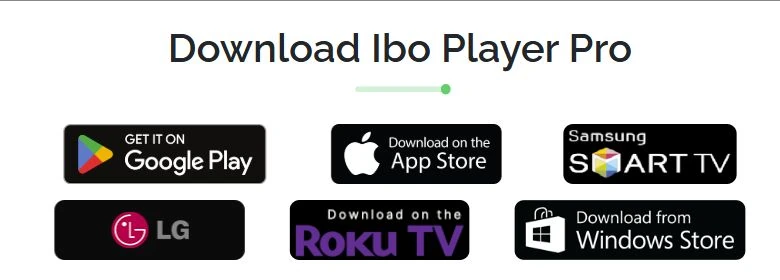
The Android listing reached from that page is currently named Ibo Pro Player – Smart TV. Use the official link to identify the intended app rather than relying only on a similar icon. On a television, check the exact model, operating system and regional store availability.
On an Amazon device, confirm the operating system before following an APK tutorial. Our IPTV on Firestick setup guide covers that compatibility check. A download intended for Android is not evidence that it works on every device carrying the Fire TV name.
Open the installed player and note its full name and version. Leave its device-information screen accessible while you complete the next step. If the app cannot start, resolve that installation problem before adding or paying for anything.
2. Find your MAC Address and Device Key
Use the identifiers displayed inside the player. Do not substitute your router’s MAC address, your Wi-Fi password or your provider password. The Device Key belongs to the player’s device-management login, not to the IPTV subscription.
- Open the app and find the screen showing its MAC Address, Device Key and website or QR code.
- On your phone or computer, open the official management portal linked by that exact app.
- Copy both identifiers carefully, preserving separators and characters.
- Log in and check that the device information matches before editing a playlist.
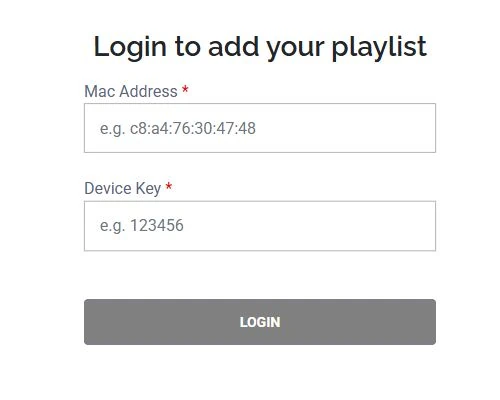
The official playlist login asks for these two fields. The publisher’s FAQ currently recommends iboproapp.com for future use and describes iboplayer.pro as providing the same functions. Follow the current address displayed by your app and cross-check it against the publisher’s links; do not enter device details into an unrelated activation website.
Keep access details private. A screenshot for public troubleshooting should hide the MAC Address, Device Key, provider password and complete playlist URL. Share necessary details only through the relevant provider’s private support channel.
3. Add an M3U playlist or Xtream Codes details
Use the format your provider actually supplied. In the management interface, an option such as Add Playlist accepts a playlist URL, while Add XC Playlist, where available, accepts separate Xtream Codes fields. Labels and available options can vary between versions.
| Input type | What you enter | Typical mistake |
|---|---|---|
| M3U URL | The complete playlist link, including its path and any query parameters. | Pasting only the server address or cutting off the end of the link. |
| Xtream Codes / XC | The server URL, username and password in their separate fields. | Putting the full M3U link into the server field. |
| MAC and Device Key | The identifiers from the player, used for its management login. | Trying to use these as the provider username and password. |
If you received an M3U URL
Choose the playlist URL option, give the list a recognisable name and paste the full link. Remove accidental spaces or line breaks, but keep the address itself intact. Check for missing characters at the beginning and end, particularly if the link was copied from a message.
If you received Xtream Codes
Choose the XC option if your version offers it. Enter the supplied server address, username and password separately. Preserve any required port in the server address. Usernames and passwords may be case-sensitive, so copy them rather than retyping from memory.
Preserve HTTP or HTTPS exactly as supplied. Do not remove the “s” as a general troubleshooting step. If the endpoint fails or shows a certificate problem, ask the provider for the correct supported address rather than guessing or bypassing a security warning.
Save the playlist and check that it appears in the list. If one supported format fails, ask the provider whether it can supply the other for the same account. Switching formats can help isolate an input problem; it will not renew an expired subscription or repair an unavailable server. A MAG-style portal address is not automatically an M3U or XC account, so ask for details compatible with this player.
4. Reload the playlist and test actual playback
Return to the player and use its reload or refresh option, or close and reopen the app. Allow the first import to finish before repeating the process. A large catalogue can take longer to load; repeated restarts can make it harder to tell whether an import has completed.
Seeing channel names is only the first check. Confirm that a permitted stream starts, the picture moves and sound plays. Then test a second item. If your subscription includes live TV and on-demand content, try one of each to understand whether the problem affects a single item or a whole category.
- No categories: recheck the saved playlist and account status.
- Categories but no playback: ask about stream availability, connection limits and device compatibility.
- One failed item: note its exact name and compare with another item.
- Playback stops: check the network and other simultaneous sessions.
Do this while the app permits testing. Do not assume that every version has the same trial length or that a trial can be reset. If a licence screen prevents testing, ask the publisher about the current evaluation options before making a purchase.
5. Complete IBO Player Pro activation after checking the licence
Once you have confirmed the right app, device and working playlist, open the activation route offered by that app or its official portal. The publisher describes activation through an in-app purchase; the exact route can differ by platform. Read the details shown for your installation.
Before confirming IBO Player Pro activation, check:
- The device identifier to which the licence will apply.
- The amount, currency and duration shown at checkout.
- Whether renewal is manual or recurring.
- The applicable refund and device-transfer conditions.
- Whether you already hold a valid licence for this device and product.
Use the publisher’s current terms alongside the checkout information. This guide does not quote a fixed activation price or promise a lifetime licence because those details must match the actual offer you are buying.
Keep the receipt. If payment succeeds but the app still shows an activation message, reopen it and check the same device in the official portal. Contact the licence seller with the receipt and device details privately before paying a second time. Paying for the player again will not extend your separate content subscription.
IBO Player Pro not working after setup: what to check
Start at the stage that failed. Changing the app, playlist format and network all at once hides the cause. Make one change, repeat the same test and record the result.
| Symptom | First check | Next contact |
|---|---|---|
| MAC or Device Key rejected | Match the portal to the installed app and copy the current identifiers again. | App support if the official portal still rejects them. |
| Playlist saved but empty | Check the full URL or XC fields, reload once and confirm the provider account is active. | Playlist provider. |
| Channels appear but none play | Test another item and check other sessions against your connection allowance. | Provider; app support if the issue is isolated to this player. |
| Only some videos fail | Record the item, device and error; check whether the format is supported. | Provider for the stream, app support for a player-specific problem. |
| Playback buffers or freezes | Compare a stable wired or nearby Wi-Fi connection and reduce competing traffic. | Network or provider support according to the result. |
| Licence active but content expired | Check the provider account separately from the app licence. | Playlist provider, not the app licence checkout. |
For a wider diagnosis, use our IPTV not working troubleshooting guide. It covers login failures, playlist loading, buffering and server errors without assuming every problem comes from the player.
When asking for help, include the device model, app name and version, exact error, time of the problem and which tests you tried. Say whether the failure affects login, the catalogue or playback. That is more useful than sending “it doesn’t work” or an unredacted playlist screenshot.
IBO Player Pro activation and playlist FAQ
Does IBO Player Pro activation include channels?
No. Activation concerns the player licence. You need a separate valid playlist or provider account for the content you want to watch.
Where do I find my MAC Address and Device Key?
Look inside the installed player’s device-information or activation screen. Use those identifiers for its matching management portal, not the MAC address printed on your router.
Is M3U better than Xtream Codes for this setup?
Use the format supported by your app and supplied by your provider. M3U uses a full playlist URL; XC separates the server, username and password. Neither format automatically fixes an expired account or an unavailable stream.
Is IBO Player Pro free?
Check the current terms for your version. Installation, evaluation access and a paid player licence are different things. Do not assume a universal trial duration or that downloading the app includes a subscription.
Can I use the same licence on a new TV?
Check the publisher’s device and transfer conditions before purchasing or replacing equipment. A provider’s multi-screen subscription does not establish how many devices an app licence covers.
I paid for activation. Why is my playlist still empty?
First check that the playlist is saved for the correct device, then verify the provider details and account status. An active player licence does not create a playlist, supply channels or renew a provider account.
Your final setup check
A completed IBO Player Pro activation should leave you with a clearly identified app, a saved playlist, tested playback and a licence whose conditions you understand. Keep the player receipt separate from the provider’s account information so you know whom to contact when something changes.
Need help with your Best IPTV playlist?
Tell us your device, app version and the stage where setup stops. We can help check the access details supplied with your service. For a licence purchased from the app publisher, contact that seller about billing or activation.
Sources and screenshot notes
Checked on 18 October 2026 against the official download page, playlist login, Android listing, FAQ and terms linked above. The two portal screenshots were captured from public pages without customer credentials. Menus, availability and licence conditions may change. This is an independent Best IPTV guide, not an official IBO support document.