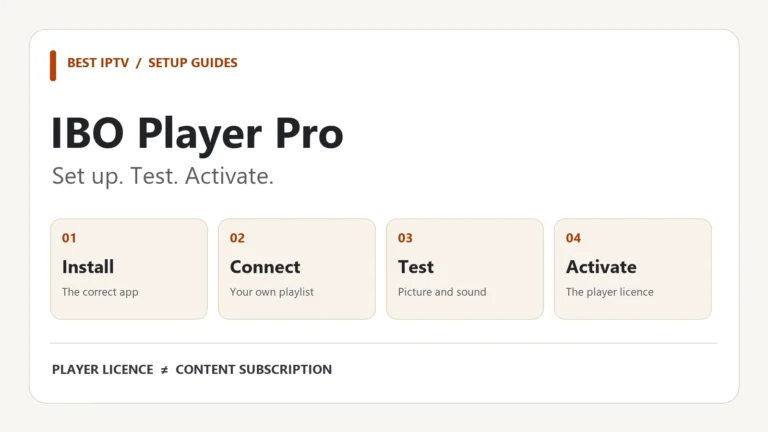
To use IPTV on Samsung TV, you need an internet connection, a player compatible with your exact television and valid access details from your content provider. Find the player in the TV’s app store, connect your authorised playlist using the method it supports, and test playback before paying for a player licence. If the app is unavailable, a compatible streaming device connected through HDMI is another route.
The important question is not simply whether your television is a Samsung. Its model, software and available apps determine the setup you can use. This guide helps you check those details and identify which part needs attention if the first channel will not play.
Before you start: the four essentials
- A suitable device: your Samsung Smart TV, or a compatible external streaming device.
- A working connection: reliable Wi-Fi or Ethernet where supported.
- A compatible player: an app that accepts the access format supplied to you.
- Content access: an active account or playlist for content you are entitled to watch.
A television connected to the internet does not automatically have access to your provider’s channels. Likewise, installing a player does not create a content subscription.
1. Check your Samsung TV model and software
Before installing anything, note the TV’s model code and software version. Samsung explains that these details can be found under Settings → Support → About This TV; the model code is also on the label on the back. Menu labels may differ on your television. See Samsung’s model identification instructions.
Keep that information in a short setup note alongside the app name and version. “Samsung 55-inch TV” is not specific enough for a developer to confirm compatibility. You do not need to publish the television’s serial number to ask which app supports it.
Samsung Smart TV is not an Android TV installation
Samsung’s platform documentation distinguishes Tizen televisions from older legacy models. An Android APK is not a native Tizen app. Do not follow Android installation steps just because a guide also mentions “Smart TV”.
Use the TV’s own Apps catalogue as your first compatibility check. If a tutorial starts with downloading an APK, establish whether it is actually describing an Android box connected to the TV rather than the Samsung television itself.
2. Choose an IPTV app for Samsung TV that fits your setup
Start with an app you can find on your television and verify its developer. Similar names and logos are not proof that two players share the same activation portal, licence or features.
For example, SmartOne’s official website lists Samsung Tizen and Orsay support and describes both M3U and Xtream-compatible access. It also explicitly separates its player from channel subscriptions. This makes it an example to check in your TV’s store, rather than a guarantee that it is available on every model or in every country.
| What to check | What a useful answer looks like |
|---|---|
| TV compatibility | The developer supports your model or platform, and the app is available in your TV’s store. |
| Access method | The player accepts the M3U link, Xtream-style login or other method your provider supplies. |
| Remote navigation | You can open categories, search, change channels and return to the previous screen comfortably. |
| Playback | Your actual test content has working picture and sound, plus subtitles when supplied. |
| Licence | You understand the player’s own price, activation rules and any separate content charges. |
The best IPTV app for Samsung TV is therefore a practical match, not just a name at the top of a list. This guide does not rank untested apps or promise that every advertised feature will work on your television.
Player licence and subscription are separate checks. Paying to activate an app will not repair an expired provider account or supply a missing playlist. Our FAQ explains the difference between a player and a subscription.
3. Install the player and connect your access details
Samsung’s general installation route is Home → Apps → Search, then select the app and choose Install. A Samsung account is required to download apps. Follow your television’s current on-screen prompts if its layout differs; Samsung’s app management guide covers installation and updates.
Open the player and check how it expects you to add content. You may enter details on the television, or use the official management website shown inside the app. A phone or computer is usually easier for copying a long playlist address accurately.
Match the fields to the details you received
- M3U: use the complete playlist URL in the playlist field.
- Xtream-style login: enter the server address, username and password in their separate fields.
- Device-linked setup: use the app’s displayed identifier and its own instructions. Do not assume this is interchangeable with a provider’s MAG portal or the TV’s network MAC address.
Copy details exactly, including the protocol, any port and capital letters. Do not remove the “s” from an HTTPS address as a routine fix. If the supplied address fails, ask the provider to confirm the correct endpoint and supported login method.
Save the entry, then refresh or reopen the player as its instructions require. Give the initial import time to finish before entering the same playlist again. Repeated duplicate entries make it harder to tell which configuration you are testing.
Keep a clean setup record: write down the app name, official portal and date of the test. Keep passwords, device keys and complete playlist URLs private. If you share a screenshot for help, hide those values first.
4. Test IPTV on Samsung TV before committing
A loaded channel list is only the first checkpoint. It shows that the player has received some catalogue information; it does not prove that every stream, audio track or playback format works.
Use a small, repeatable test instead of jumping between dozens of items. Start with one live channel, then a second channel from another category. If your package includes on-demand content, try one short section of a film or episode too.
- Check picture and sound together. Note whether the issue affects all items or only one.
- Try normal remote controls. Change channels, open the programme guide and return to the list.
- Check optional features. Test subtitles or another audio track only on content that includes them.
- Reopen the app. Confirm that the saved account and playlist remain available.
- Check the account limit. Stop playback elsewhere if your subscription allows only one simultaneous connection.
If the player offers a trial, use it to validate your own setup under its current terms. A player trial and a provider’s content test are separate offers; neither should be assumed from the other.
For an intermittent problem, repeat the same sample at another time and record the difference. This gives support more useful evidence than “it sometimes buffers”, without requiring you to guess whether the television or the service is responsible.
5. If the app is missing, choose another supported route
If your chosen player does not appear in Apps, confirm its exact name and check the developer’s current Samsung availability for your model and country. An app being available on a phone or another brand of TV does not establish Samsung compatibility.
You have two reasonable paths: choose another supported native player, or use an external streaming device. With the second option, the app runs on that device and the Samsung TV displays its picture through HDMI. Check the device’s app support before buying it.
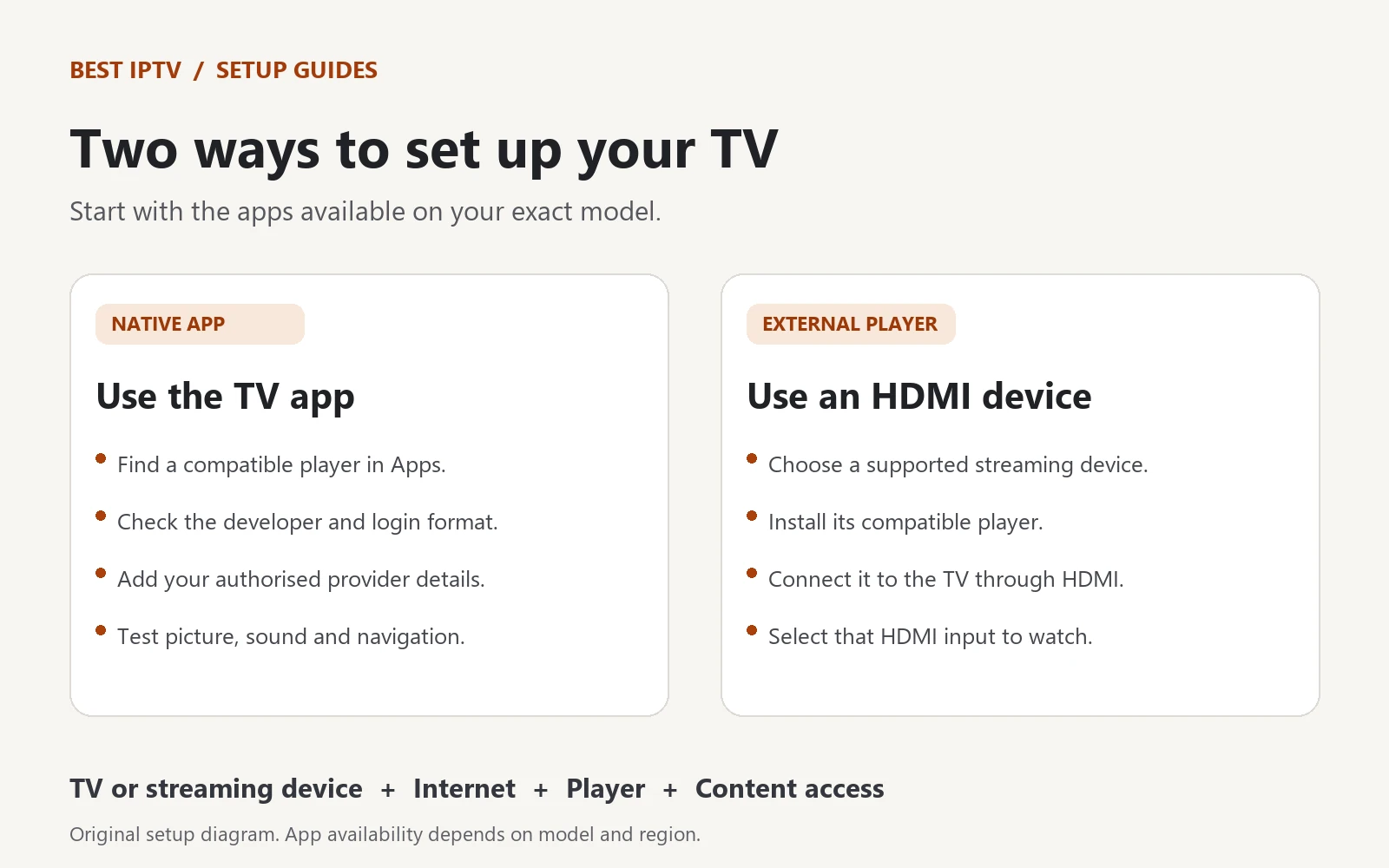
For a Fire TV route, follow our IPTV on Firestick setup guide. The app installation takes place on the Fire TV device; you then select its HDMI input on the television. This can also be an option when a TV’s built-in app catalogue no longer meets your needs.
Do not reset the television or change its region merely because one app is absent. First establish whether that app actually supports your device. A reset cannot turn an unsupported platform into a compatible one.
IPTV on Samsung TV not working: isolate the failure
Identify the earliest stage that fails: opening the app, loading the playlist or playing a stream. Each stage points to a different first check.
| What you see | First useful check |
|---|---|
| The app freezes before login | Check the app and TV software, then follow Samsung’s restart guidance. |
| The app opens but the playlist is empty | Verify the saved access method and ask the provider whether the account is active. |
| Names load, but nothing plays | Check the connection limit, then ask the provider to test the same account and stream. |
| Only one item fails | Report the exact title or channel and time, rather than reinstalling everything. |
| Playback buffers intermittently | Compare Wi-Fi with Ethernet where available and repeat the same stream under similar conditions. |
Restart before resetting
Samsung distinguishes a cold boot from ordinary standby. Its official app troubleshooting sequence starts with a cold boot, followed by a software update, reinstallation and finally a Smart Hub reset. The remote method is to hold Power until the TV turns off and starts again.
Keep login details before reinstalling. A Smart Hub reset signs you out of the Samsung account and apps, so reserve it for the appropriate troubleshooting stage rather than using it as the first response to one unavailable channel.
If another streaming app works, that is useful evidence, but it does not prove every network route or IPTV endpoint is reachable. For a fuller diagnosis—including connection errors, playlist loading and interruptions—use our IPTV not working troubleshooting guide.
Frequently asked questions
Can I use IPTV on Samsung TV without a separate box?
Yes, if your exact TV has a compatible player available and it can play your authorised content. Check the native app route first. An external HDMI device is an alternative when a suitable native app is unavailable.
Which IPTV app should I choose for a Samsung TV?
Choose one supported on your model that accepts your provider’s login format and works well with your remote. Verify the official developer and test your actual content before purchasing a licence. Availability matters more than a generic “best app” ranking.
Does installing an IPTV player include channels?
Do not assume so. A player may only manage and play the content you add. Check what the app licence includes and obtain any required content access separately.
Can I install an Android APK directly on a Samsung Tizen TV?
No. Tizen and Android use different app platforms. Use a compatible Samsung app, or run the Android application on a supported external Android device connected to the TV.
Why do channels appear but the picture will not play?
The catalogue can load even when playback fails. Test more than one item, check simultaneous connection limits and send the exact error to your provider. If only certain items fail, record those examples before changing the setup.
Will buying a new player fix buffering?
Not necessarily. Buffering can involve the connection, stream, service or player. Compare the same content under controlled conditions first, so you know what a different app would actually need to solve.
Your final Samsung TV setup check
A working setup for IPTV on Samsung TV has four confirmed parts: a supported device, a suitable player, valid content access and reliable playback. Once those are in place, save your configuration details privately and use the same short test if a problem returns.
Need help checking your setup?
Tell us your TV model, software version, app name and the stage where it stops working. Include the error wording, but keep passwords and playlist addresses out of public messages.
Sources and editorial notes
Official Samsung and SmartOne documentation checked on 18 October 2026 and linked beside the relevant instructions. Menus and availability can change by model, software and region. This is a documentation-based setup guide, not a hands-on comparison of every Samsung television or player. The cover is an AI-generated illustration; the setup diagram is original Best IPTV artwork.